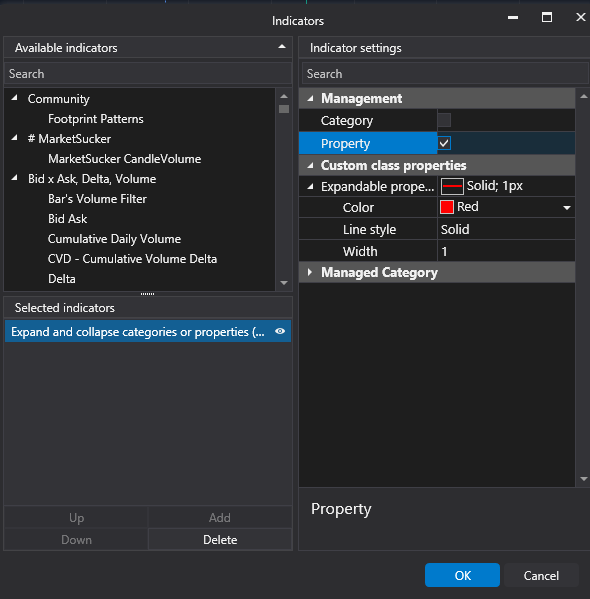
Collapsing settings categories
An indicator can expand and collapse the groups and the expandable properties of its own settings window, both when
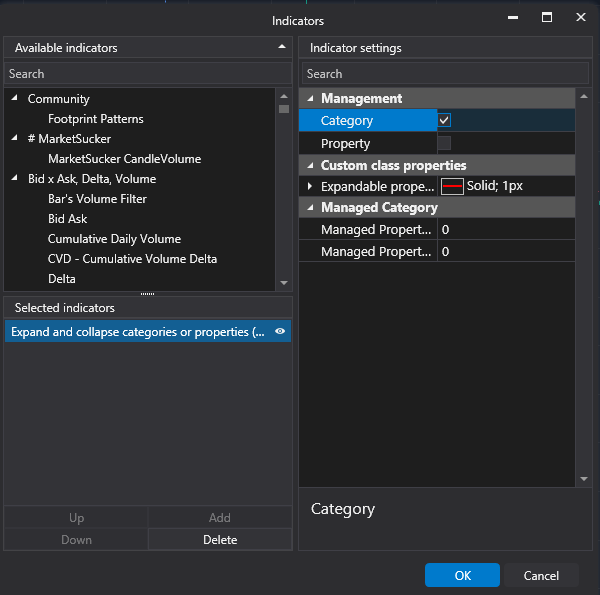
the window opens and while it is shown. The example below has two switches, Category and Property, that
expand and collapse the Managed category group and the Expandable property (a PenSettings value with its
own Color, Line style and Width).
How it works
Every indicator implements IPropertiesEditorOwner: when the indicator
is shown in the settings window, the window passes its properties editor
(IPropertiesEditor) to the PropertiesEditor property of the indicator, and
when another object is shown, the property is set back to null. You do not implement the interface yourself.
- To set the initial state when the editor appears, override
OnPropertiesEditorChanged(oldValue, newValue): it is called every timePropertiesEditorchanges. Change the categories and properties betweenBeginInitandEndInitof the editor. - To change the state while the indicator is shown, call the editor through
PropertiesEditor. It isnullwhen there is no editor, so use the?.operator.
The editor methods: SetIsExpandedCategory(categoryName, isExpanded) for a group,
SetIsExpandedProperty(propertyName, isExpanded) for an expandable property. In the switch properties,
SetProperty stores the value, notifies about the
change and runs the action that expands or collapses the target.
Warning
Do not implement IPropertiesEditorOwner.PropertiesEditor explicitly in your indicator: the platform would then set
your implementation instead of the base one, and the PropertiesEditor property and OnPropertiesEditorChanged of
the indicator would stop working.
Example
using System.ComponentModel;
using System.ComponentModel.DataAnnotations;
using System.Drawing;

using ATAS.Indicators;
using OFT.Rendering.Settings;

namespace ATAS.Docs.Samples.ChartIndicators;

[DisplayName("Expand and collapse categories or properties")]
public class ExpandAndCollapseCategoriesOrPropertiesIndicator : Indicator
{
    private const string ManagedCategoryName = "Managed category";

    private bool _categoryManager;
    private bool _propertyManager;

    [Display(Name = "Category", GroupName = "Management")]
    public bool CategoryManager
    {
        get => _categoryManager;
        set => SetProperty(ref _categoryManager, value, () => PropertiesEditor?.SetIsExpandedCategory(ManagedCategoryName, value));
    }

    [Display(Name = "Property", GroupName = "Management")]
    public bool PropertyManager
    {
        get => _propertyManager;
        set => SetProperty(ref _propertyManager, value, () => PropertiesEditor?.SetIsExpandedProperty(nameof(ExpandableProperty), value));
    }

    [Display(Name = "Expandable property", GroupName = "Custom class properties")]
    public PenSettings ExpandableProperty { get; set; } = new();

    [Display(Name = "Managed Property 1", GroupName = ManagedCategoryName)]
    public int ManagedProperty1 { get; set; }

    [Display(Name = "Managed Property 2", GroupName = ManagedCategoryName)]
    public int ManagedProperty2 { get; set; }

    public ExpandAndCollapseCategoriesOrPropertiesIndicator() : base(true)
    {
        DenyToChangePanel = true;
        DataSeries[0].IsHidden = true;

        ExpandableProperty.Color = Color.Red.Convert();
    }

    protected override void OnCalculate(int bar, decimal value)
    {
    }

    protected override void OnPropertiesEditorChanged(IPropertiesEditor? oldValue, IPropertiesEditor? newValue)
    {
        newValue?.BeginInit();

        newValue?.SetIsExpandedCategory(ManagedCategoryName, CategoryManager);
        newValue?.SetIsExpandedProperty(nameof(ExpandableProperty), PropertyManager);

        newValue?.EndInit();
    }
}
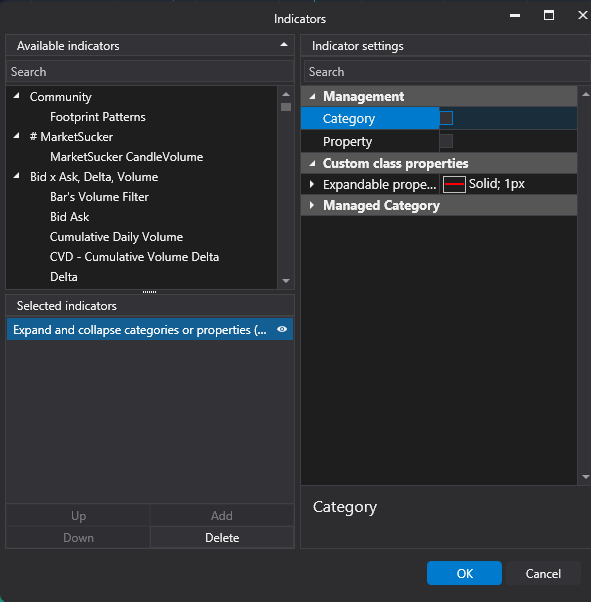
The settings window with the managed group and the property collapsed:
Category checked: the Managed category group expands.
Property checked: the Expandable property expands and shows its Color, Line style and Width.