Diagnostics: logs and debugging
When an extension does not do what you expect, two tools are at hand: the platform log, which your code can write to, and a debugger attached to the running platform.
Writing to the platform log
The platform writes its log to the Logs folder next to the Indicators folder (for example %APPDATA%\ATAS\Logs)
and shows it in the log window (the Logs button of the main toolbar). Your code writes to the same log through the
extension methods of the Utils.Common.Logging namespace (the Utils.Common assembly is part of the SDK):
LogDebug, LogInfo, LogWarn and LogError. Each method writes a message with its level (Debug, Info, Warning,
Error); a warning is highlighted in yellow in the log window.
using System;

using ATAS.Indicators;
using Utils.Common.Logging;

namespace ATAS.Docs.Samples.GettingStarted;

public class LoggingSampleIndicator : Indicator
{
    protected override void OnInitialize()
    {
        this.LogInfo("Indicator {0} initialized", GetType().Name);
    }

    protected override void OnCalculate(int bar, decimal value)
    {
        try
        {
            // your calculation
        }
        catch (Exception e)
        {
            this.LogError($"Calculation failed on bar {bar}", e);
        }
    }
}
Rules:
- For an indicator, the log level is Info, so
LogDebugmessages are not written. UseLogInfofor the messages you want to see. - The message is a format string:
{0},{1}, ... are replaced with the arguments that follow it. To write a literal brace, double it ({{or}}); otherwise the log contains an error text instead of your message. TheLogError(message, exception)overload writes the message as is. - Do not write to the log on every call of
OnCalculateorOnRender: they are called for every bar and on every tick, and the log quickly fills up with repeated messages.OnInitialize, state changes and errors are good places.
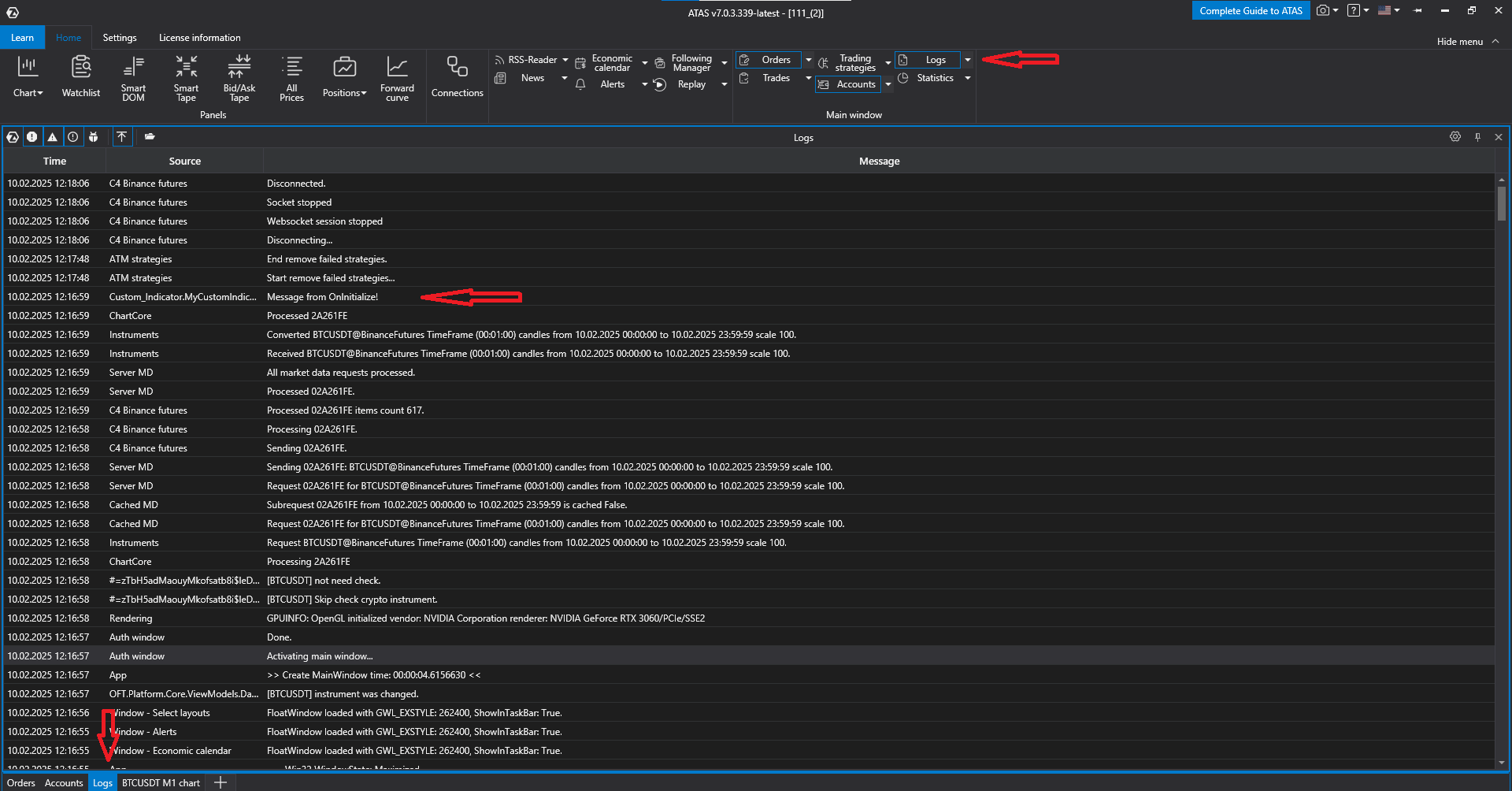
An exception thrown by your code is written to the log too, with its stack trace, so the log window is the first place to look when an indicator shows nothing or a strategy does not trade.
Attaching the debugger
A debugger attached to the running platform lets you step through your code, inspect variables and stop at the line where an exception is thrown. The steps below are for Visual Studio; Rider works the same way.
- Build the extension and install it into the platform: copy the DLL and its
.pdb(a Debug build) into the platform folder, or let a post-build step do it. If the platform is already running, reload the extensions: the classic ATAS shows a reload button in the status bar of the main window when the files changed; ATAS X reloads the changed files by itself. - In Visual Studio press
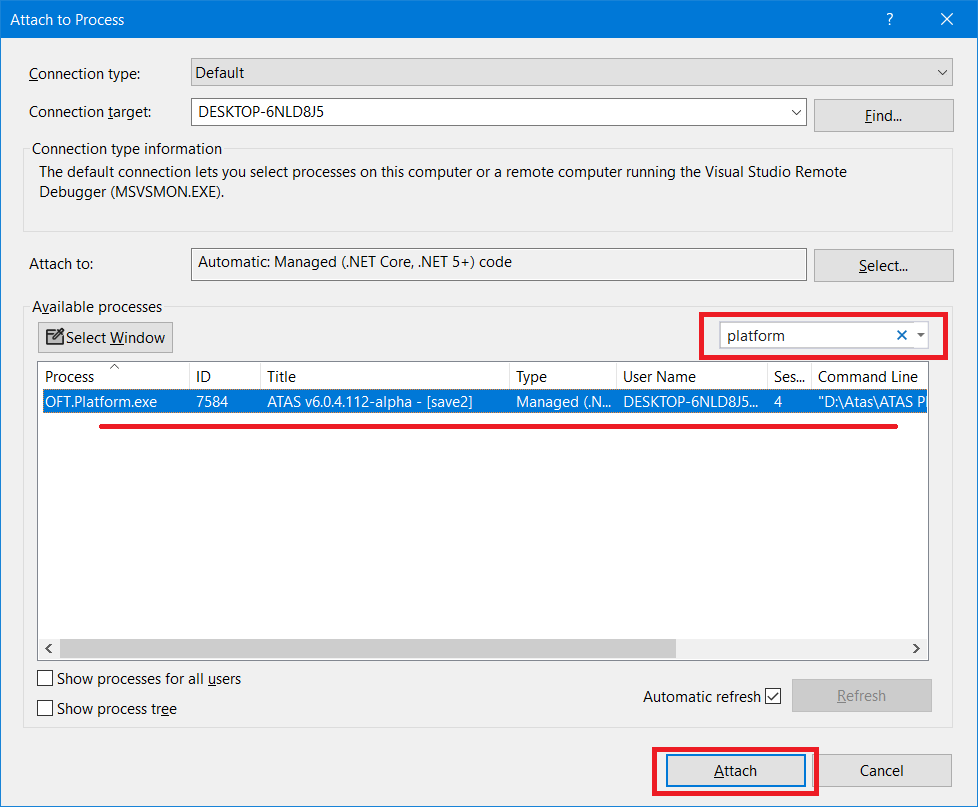
Ctrl+Alt+P(Debug → Attach to Process). - Type the process name in the search field and attach:
- classic ATAS:
OFT.Platform.exe, shown as Platform; - ATAS X:
OFT.PlatformX.exe, shown as ATAS X.
- classic ATAS:
Instead of attaching by hand, add a launch profile to the project (Properties/launchSettings.json, command type
Executable) that starts the platform executable, OFT.Platform.exe or OFT.PlatformX.exe, from its installation
folder; F5 then starts the platform under the debugger with your DLL already installed.
On macOS, use a debugger that can attach to the ATAS X process (for example, JetBrains Rider); Visual Studio attaches to Windows processes only.
Breakpoints
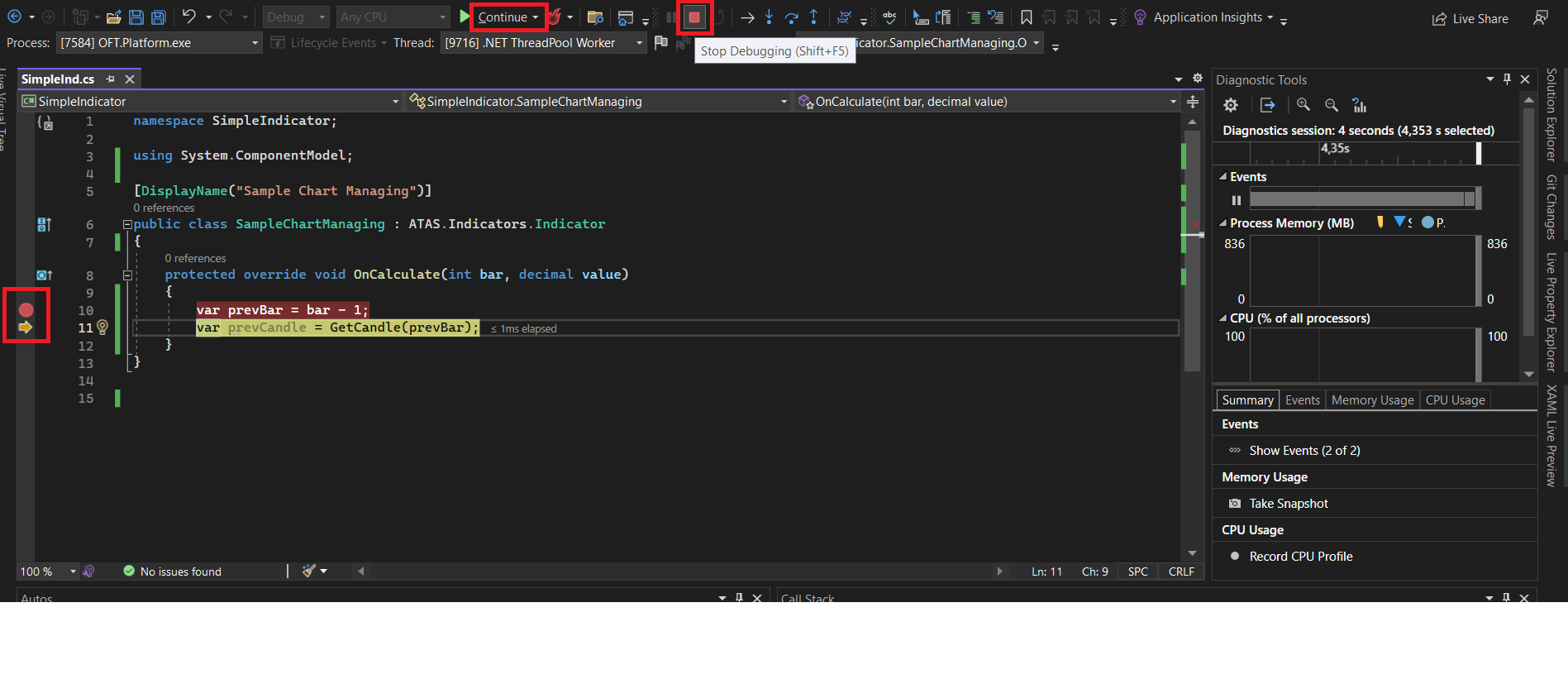
A breakpoint pauses the platform at the chosen line of your code. F11 (Step Into) moves to the next line and
enters the called methods, F10 (Step Over) moves to the next line without entering them; hovering over a
variable shows its value. Continue runs the platform until the next breakpoint, Stop detaches the debugger.
Remove the breakpoints you no longer need: while the platform is paused, the chart and the trading do not move.
Finding the cause of an exception
- The error repeats on every tick: attach the debugger; it usually stops at the throwing line by itself.
- The error happened once: reproduce it under the debugger by reloading the chart (it recalculates the indicator from the first bar).
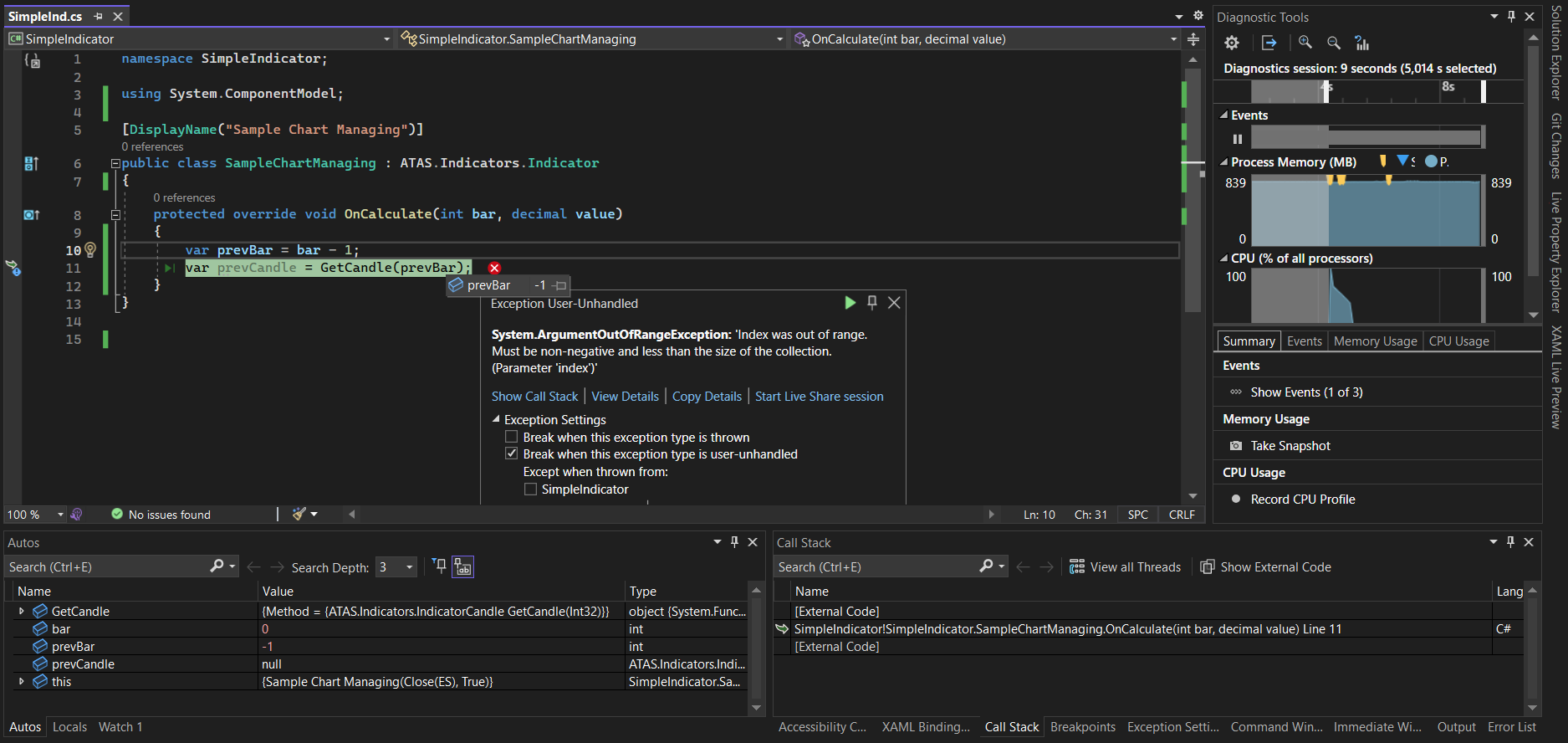
In the screenshot below GetCandle was called with a negative bar index, and the tooltip of the prevBar variable
shows the value -1.
If the extension does not appear in the platform at all, look in the log for the report of the last reload: the platform names every file it could not load, with the reason (a missing dependency, a build for another .NET version, a WPF type that ATAS X cannot convert). See Project setup for the target framework rules.