Your first indicator
This article builds a chart indicator step by step: an empty class that the platform loads, a line through the close prices, two lines from candle data, and settings the user can change. The complete code is at the end.
Create the project
Create a class library as described in Project setup, with references to the platform assemblies, and add the class below.
The indicator class
An indicator is a class derived from Indicator. The only member you must implement is OnCalculate:
using ATAS.Indicators;

namespace ATAS.Docs.Samples.GettingStarted;

public class EmptyIndicator : Indicator
{
    protected override void OnCalculate(int bar, decimal value)
    {
    }
}
The platform calls OnCalculate for every historical bar, and then, on the current bar, for every change of it (every
new tick). bar is the index of the bar, value is its source value, the close price by default. When updates come
faster than the indicator calculates, the platform skips some calls for the same bar; the latest values of a bar are
still calculated before the next bar. When the indicator has to be recalculated completely (for example, after a
setting changes and RecalculateValues is called), the
platform clears its data series and calls OnCalculate again for every bar, starting from bar 0.
Build the project. The output is a single DLL, MyIndicator.dll in bin\Debug\net10.0-windows.
Load the indicator into the platform
If the project does not copy the DLL itself, install it with the Add custom indicator button in the lower-left corner
of the indicators window: it copies the file into the Indicators folder and loads it at once. Alternatively, copy the
DLL there by hand (%APPDATA%\ATAS\Indicators for the classic ATAS) and press the reload button that appears in the
status bar of the main window; ATAS X reloads the folder by itself. The folders and the reload rules are described in
Project setup.
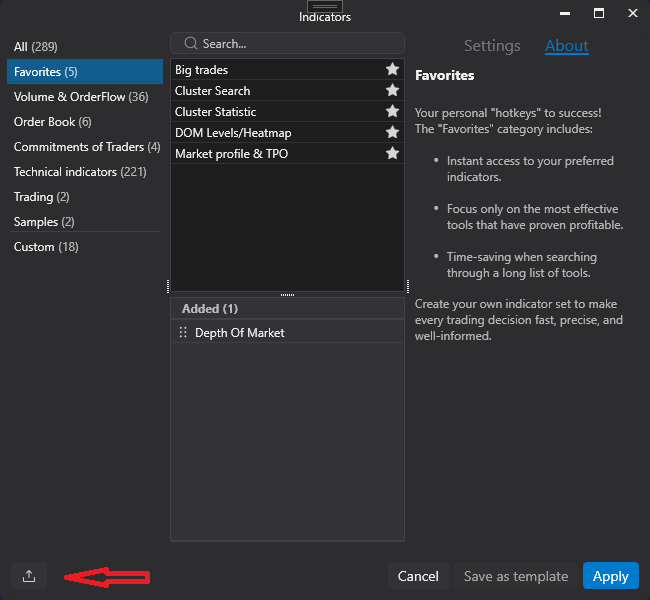
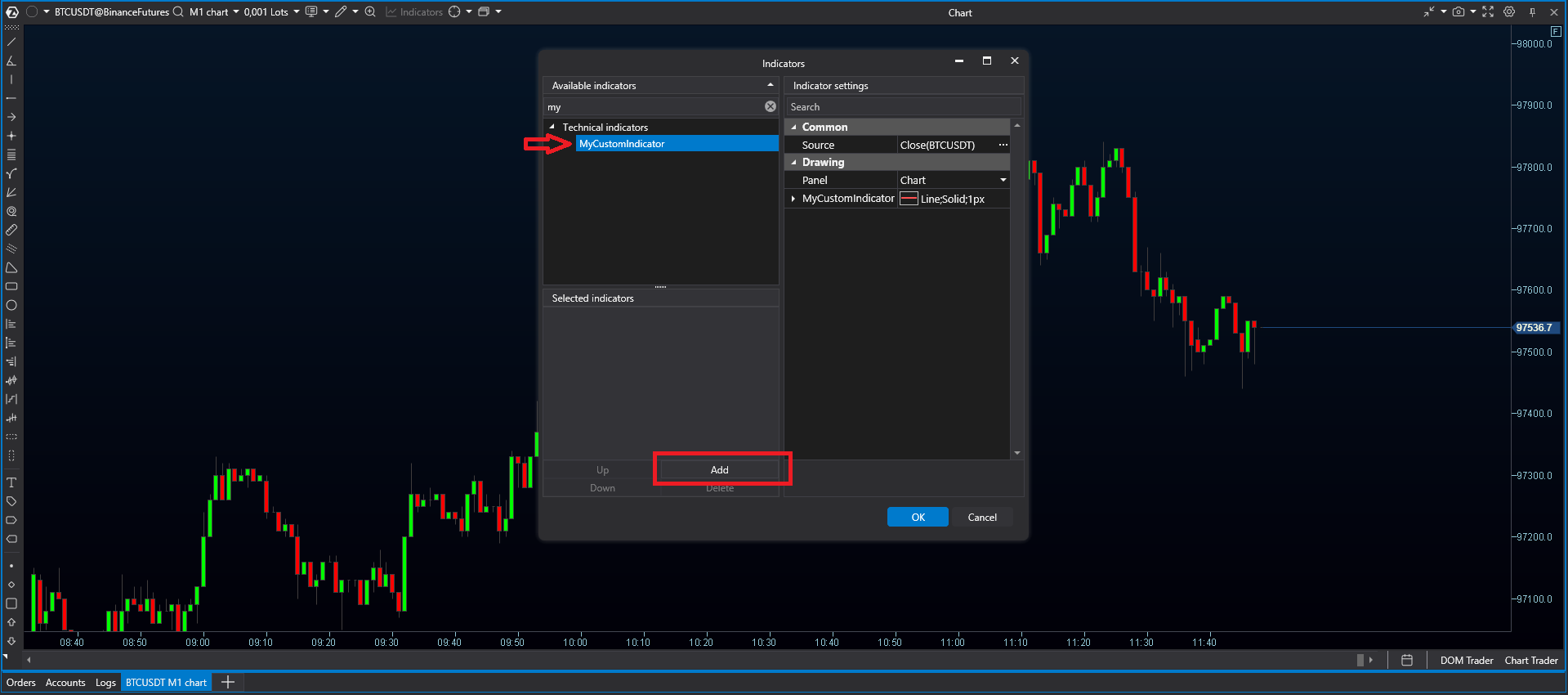
Indicators loaded from your own library are listed in the Custom group of the indicators window under their class name. Add the indicator to the chart.
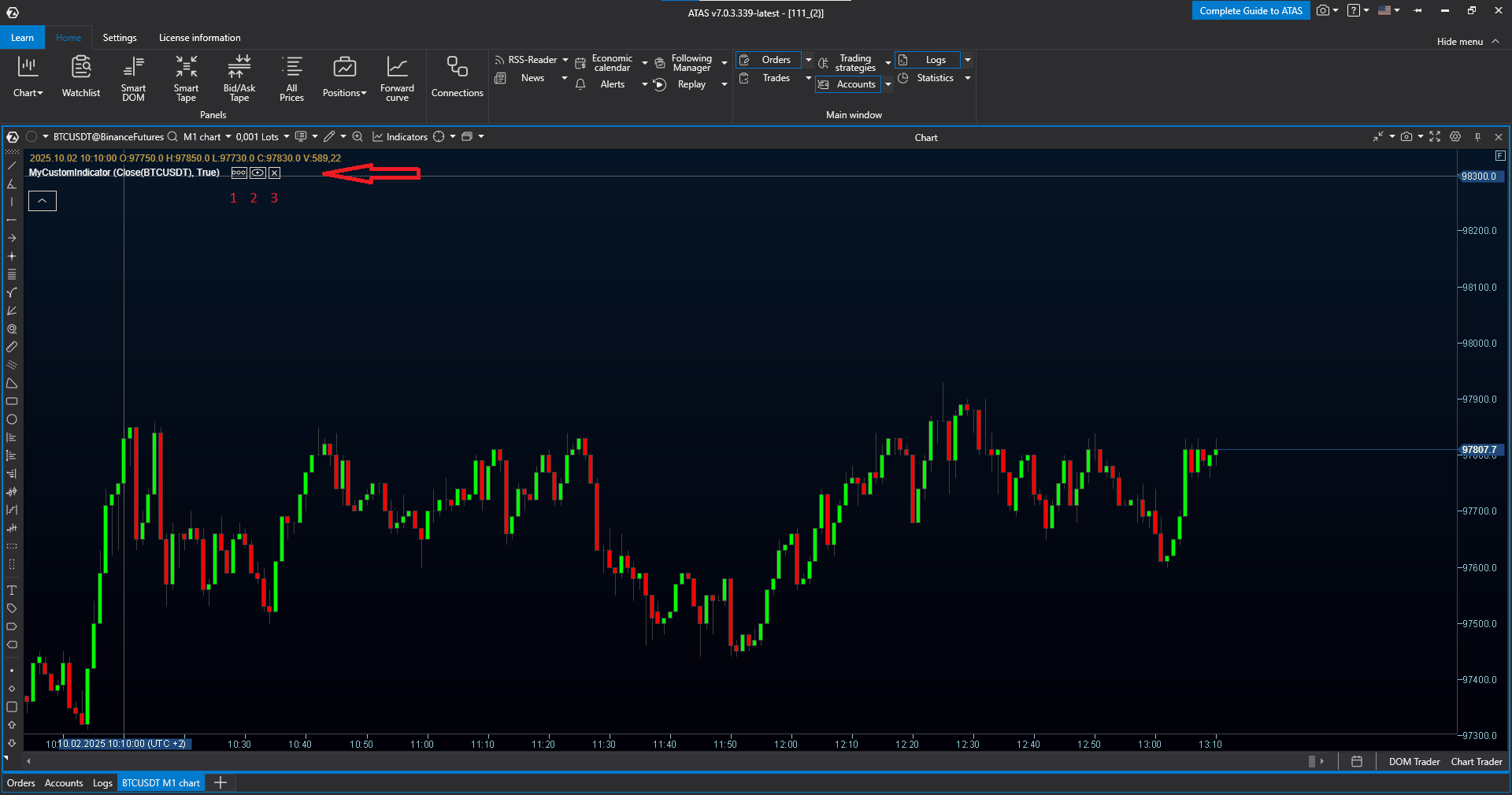
Nothing changes on the chart yet, because the indicator has no logic. Move the mouse to the upper-left corner of the chart: the list of loaded indicators shows your indicator, and hovering over its name shows the control buttons: open the settings (1), hide or show (2), remove the indicator (3).
Data series
A data series is an array with one element per bar. Bars, and therefore data series elements, are numbered from 0;
the number of bars on the chart is CurrentBar, so the last bar has the index CurrentBar - 1, and CurrentBar
grows when a new bar appears.
A wrong index in a ValueDataSeries does not cause an error that you would
notice: no exception is thrown, a negative index is treated as 0, and an index greater than the index of the last
element silently extends the series with zero values. So always use the bar index the platform passes to OnCalculate.
Candles behave differently: GetCandle with an invalid index throws an exception.
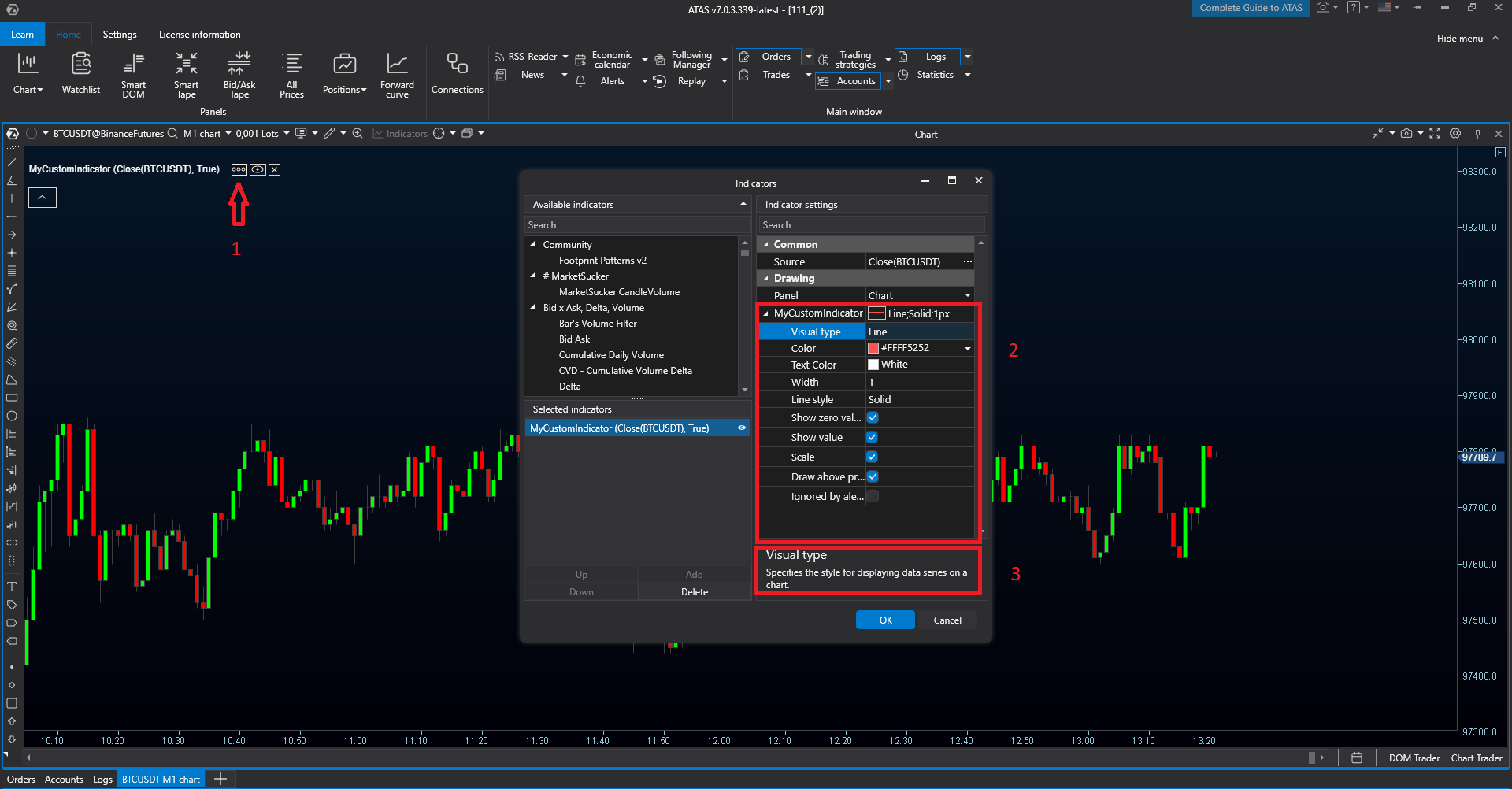
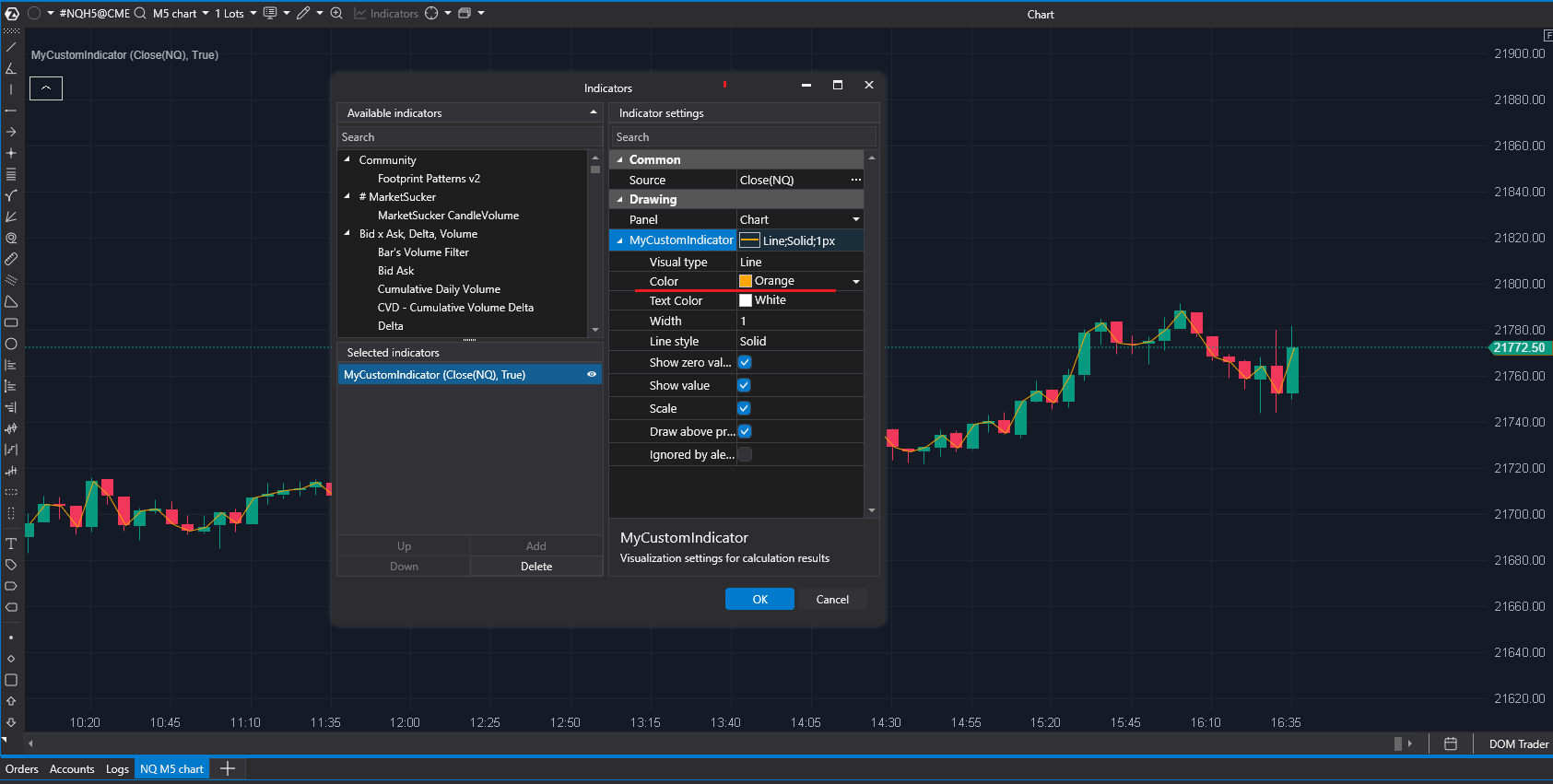
Every indicator has one ValueDataSeries from the start, DataSeries[0]: a solid red line of 1 pixel. Its settings
are shown in the indicator settings window (open it from the legend); the description of the selected setting is shown
at the bottom.
To draw a line through the close prices, take that series in the constructor, set its color and visual type, and
assign the source value to the element with the bar index in OnCalculate. DataSeries holds
IDataSeries objects, so the cast is needed. Color is the WPF
System.Windows.Media.Color, which is why the project needs UseWPF.
using System.Windows.Media;

using ATAS.Indicators;

namespace ATAS.Docs.Samples.GettingStarted;

public class CloseLineIndicator : Indicator
{
    public CloseLineIndicator()
    {
        var data = (ValueDataSeries)DataSeries[0];
        data.Color = Colors.Orange;
        data.VisualType = VisualMode.Line;
    }

    protected override void OnCalculate(int bar, decimal value)
    {
        var data = (ValueDataSeries)DataSeries[0];
        data[bar] = value;
    }
}
Build, reload and the orange line connects the close prices of the candles.
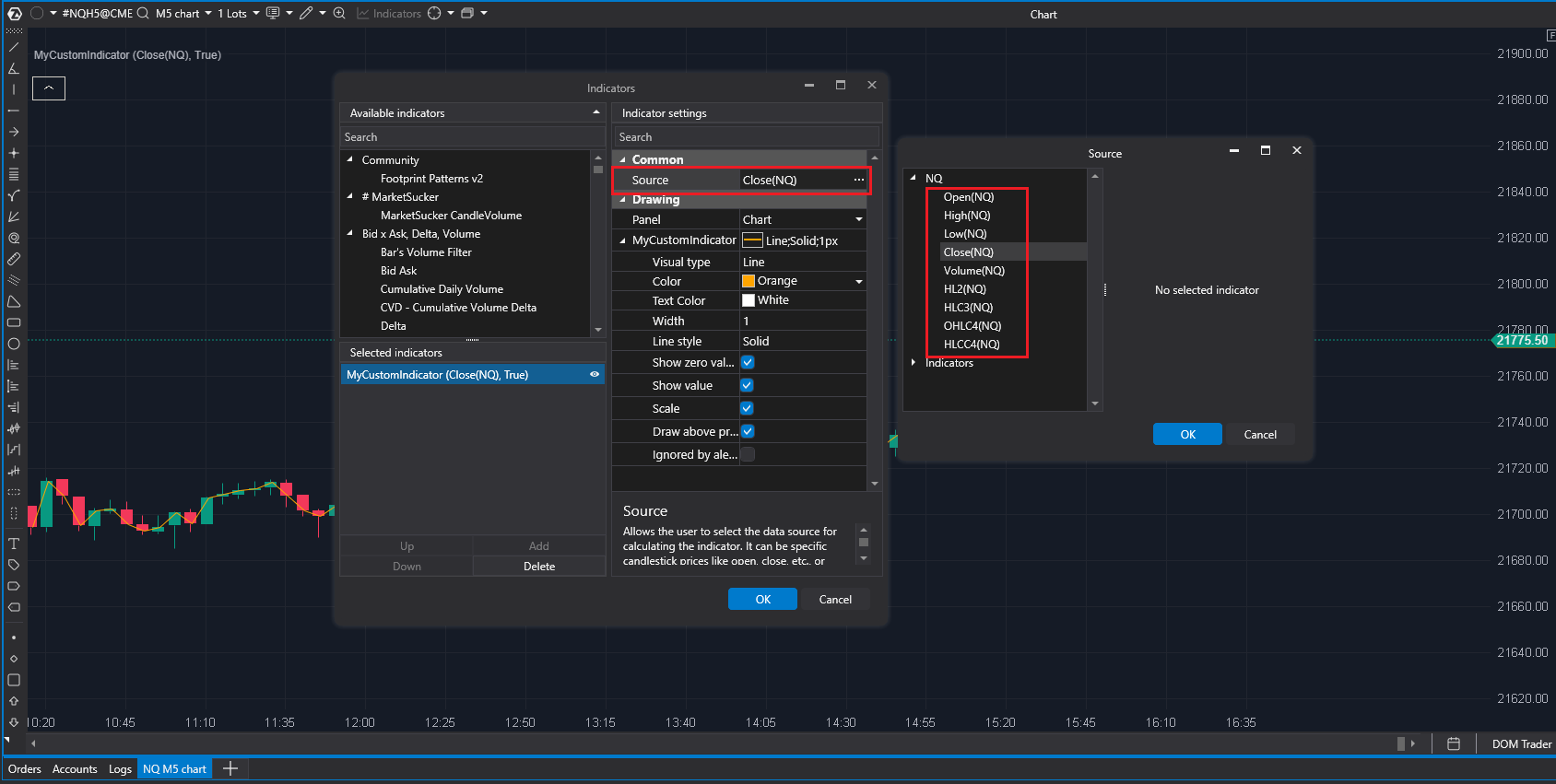
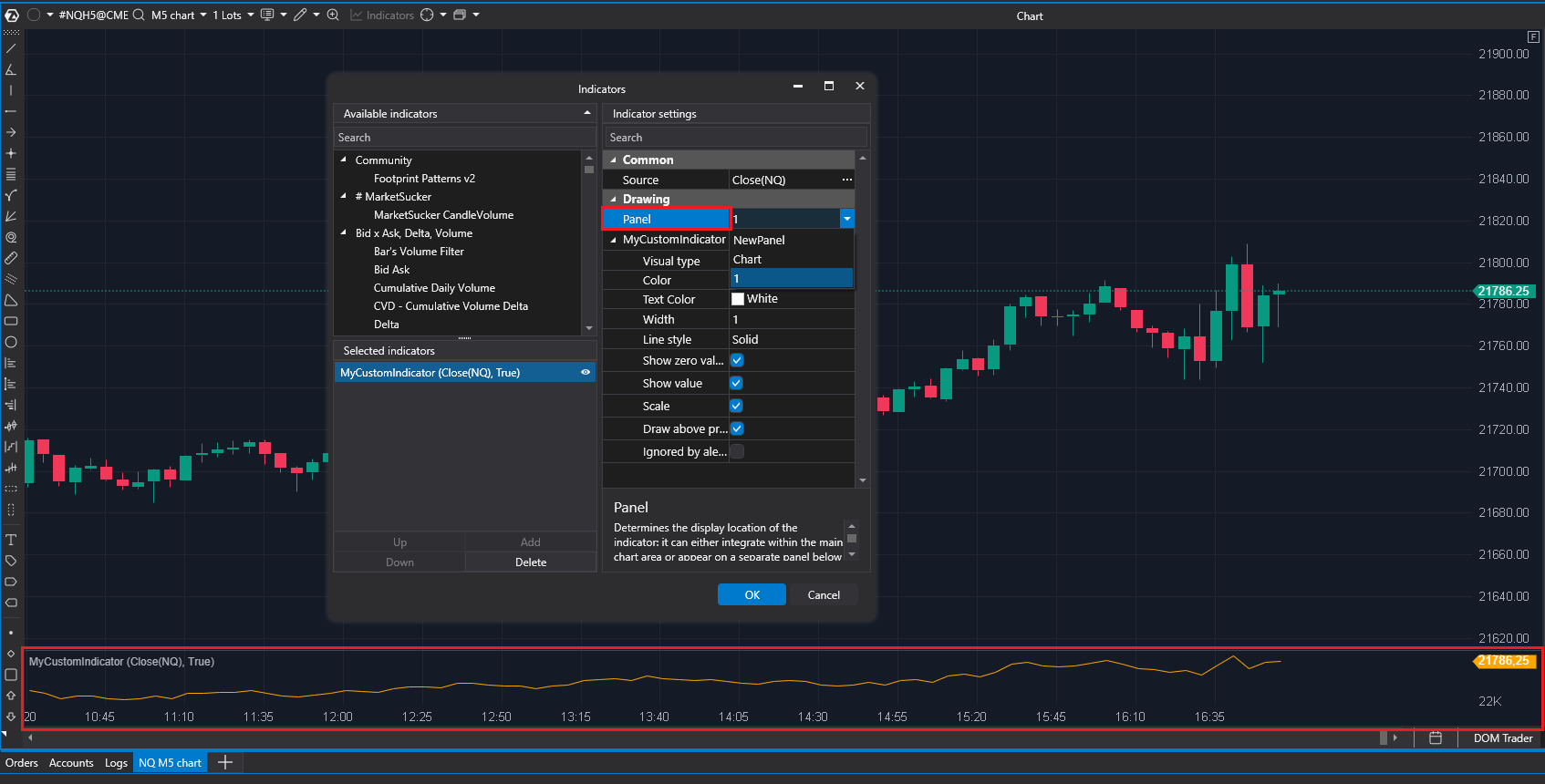
The source value is selected by the user: the Source setting offers the open, high, low, close, the volume and the
average prices (HL2, HLC3, OHLC4, HLCC4). The Panel setting selects where the data series is drawn: on the chart
or in a separate panel below it (NewPanel).
The other kinds of data series (RangeDataSeries, CandleDataSeries, PaintbarsDataSeries, PriceSelectionDataSeries, ObjectDataSeries and others) are described in the data series article.
Candle data
GetCandle returns the candle of a bar: its open, high, low and close
prices, the bid and ask volumes, the total volume and the delta, the price and the value of the maximum volume. The
index must be valid, from 0 to CurrentBar - 1; an invalid index throws an exception.
The next version draws two lines, through the highs and the lows. The default series is kept in a field, renamed
High; a second series, Low, is created with new ValueDataSeries("Low") (the argument is the id of the series,
unique within the indicator, and its name) and added to DataSeries in the constructor. In OnCalculate the candle of
the bar fills both series.
private readonly ValueDataSeries _highData;
private readonly ValueDataSeries _lowData = new("Low");

public HighLowLinesIndicator()
{
    _highData = (ValueDataSeries)DataSeries[0];
    _highData.Name = "High";
    _highData.Color = Colors.Orange;
    _highData.VisualType = VisualMode.Line;

    DataSeries.Add(_lowData);
}

protected override void OnCalculate(int bar, decimal value)
{
    var candle = GetCandle(bar);
    _highData[bar] = candle.High;
    _lowData[bar] = candle.Low;
}
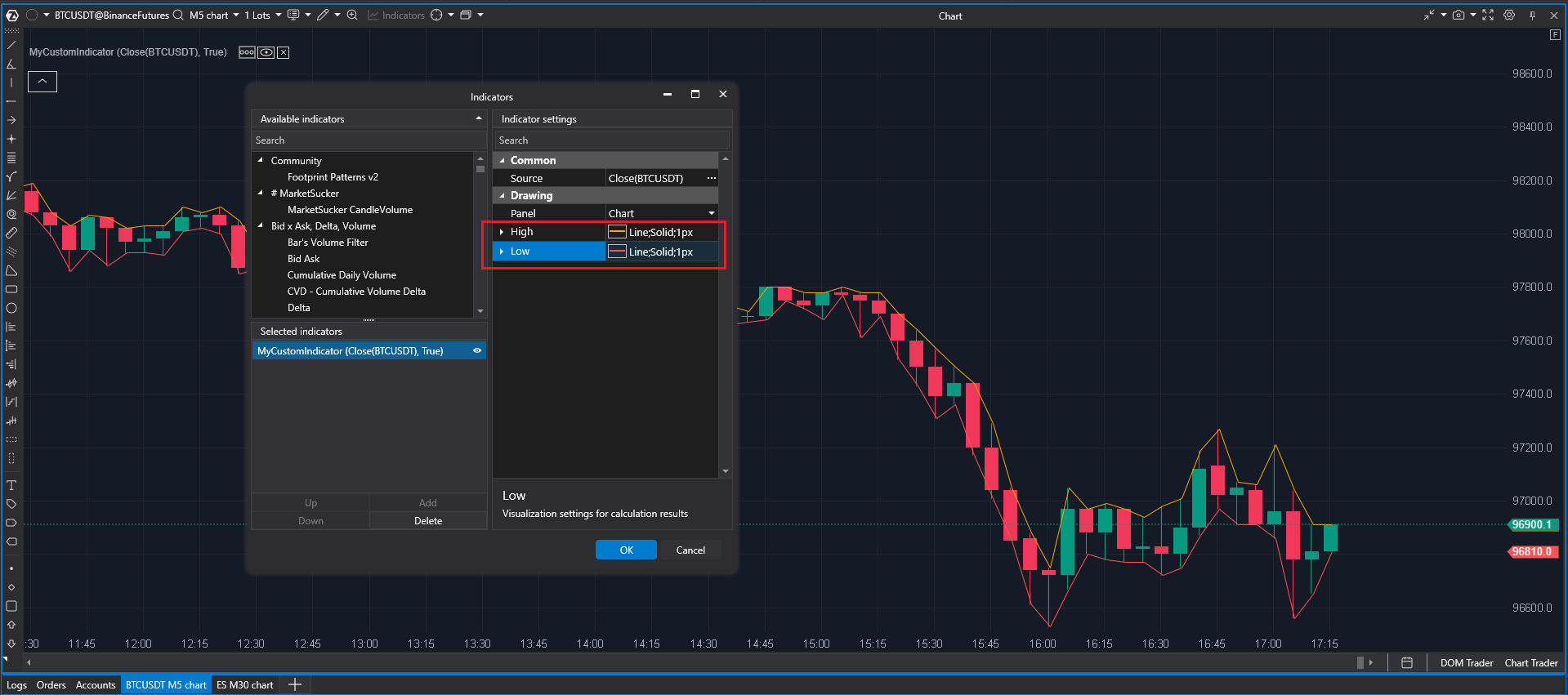
The settings window now has two groups, High and Low, with the settings of the two series.
Settings
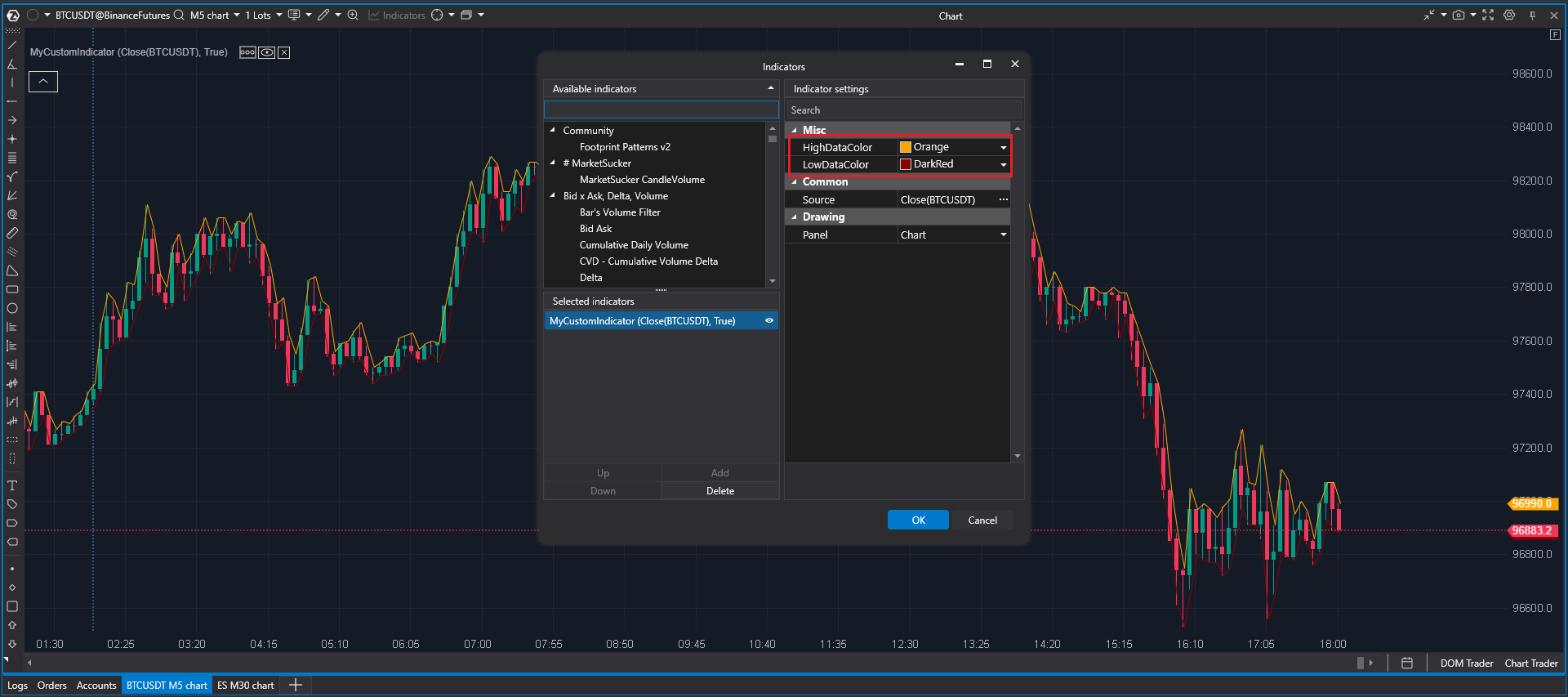
Public properties of the indicator are shown in its settings window. To let the user change only the colors of the two
lines, hide the series (IsHidden = true) and expose two properties that read and write the series colors:
[Display(Name = "High line color", GroupName = "Settings")]
public Color HighDataColor
{
    get => _highData.Color;
    set => _highData.Color = value;
}

[Display(Name = "Low line color", GroupName = "Settings")]
public Color LowDataColor
{
    get => _lowData.Color;
    set => _lowData.Color = value;
}
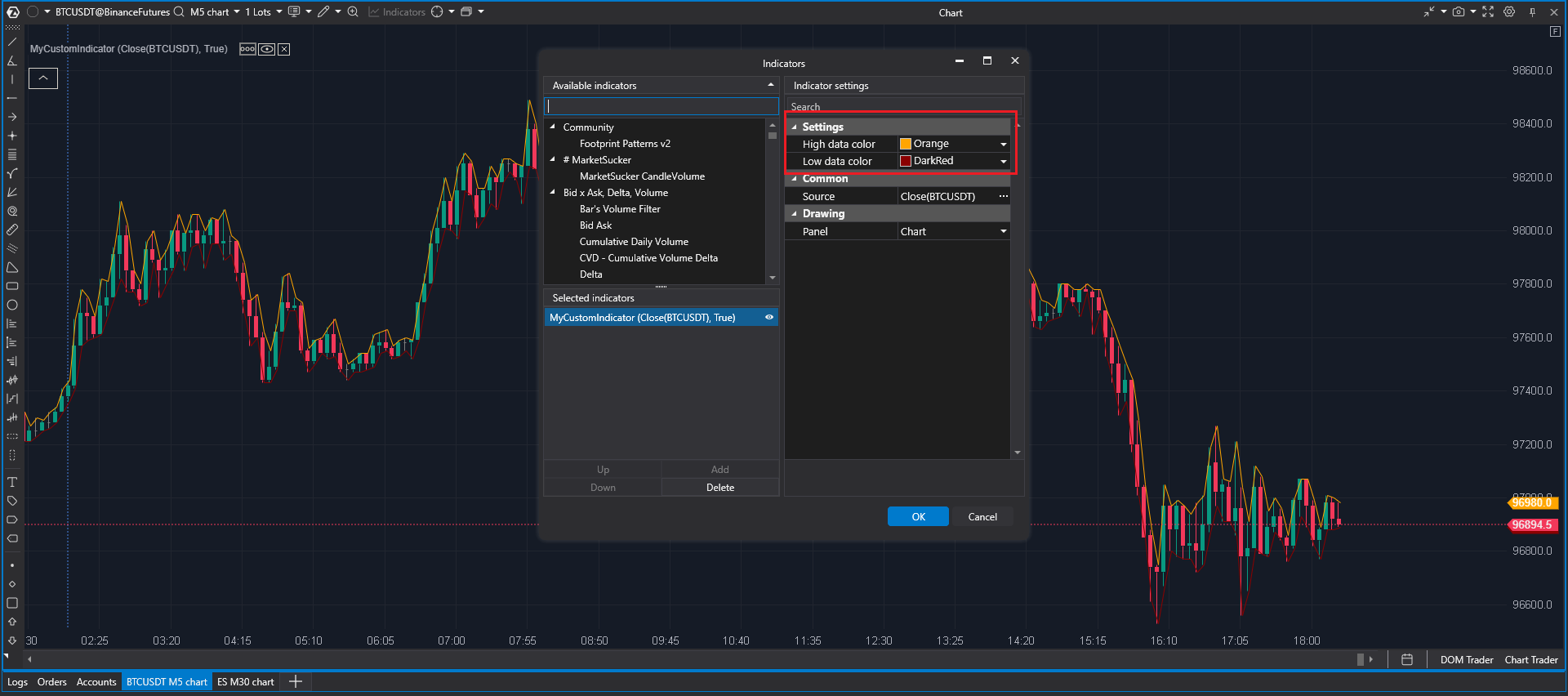
The [Display] attribute (System.ComponentModel.DataAnnotations) gives a property a readable name and a group;
properties with the same GroupName are shown together. Clicking a color property opens the color picker.
The [DisplayName] attribute (System.ComponentModel) on the class gives the indicator a readable name in the list of
indicators instead of the class name.
The complete indicator
The OnInitialize override writes a line to the platform log once, when the indicator is created: see
Diagnostics: logs and debugging.
using System.ComponentModel;
using System.ComponentModel.DataAnnotations;
using System.Windows.Media;

using ATAS.Indicators;
using Utils.Common.Logging;

namespace ATAS.Docs.Samples.GettingStarted;

[DisplayName("High and low lines")]
public class HighLowLinesIndicator : Indicator
{
    private readonly ValueDataSeries _highData;
    private readonly ValueDataSeries _lowData = new("Low");

    [Display(Name = "High line color", GroupName = "Settings")]
    public Color HighDataColor
    {
        get => _highData.Color;
        set => _highData.Color = value;
    }

    [Display(Name = "Low line color", GroupName = "Settings")]
    public Color LowDataColor
    {
        get => _lowData.Color;
        set => _lowData.Color = value;
    }

    public HighLowLinesIndicator()
    {
        _highData = (ValueDataSeries)DataSeries[0];
        _highData.Name = "High";
        _highData.Color = Colors.Orange;
        _highData.VisualType = VisualMode.Line;

        _highData.IsHidden = true;
        _lowData.IsHidden = true;

        DataSeries.Add(_lowData);
    }

    protected override void OnInitialize()
    {
        base.OnInitialize();

        this.LogInfo("Message from OnInitialize!");
    }

    protected override void OnCalculate(int bar, decimal value)
    {
        var candle = GetCandle(bar);
        _highData[bar] = candle.High;
        _lowData[bar] = candle.Low;
    }
}
Next: the other data series, drawing on the chart in OnRender, the keyboard and mouse, and the chart market data are
described in the chart indicator articles.